First sign-in
Getting in
Open https://livertk.solutop.eu and enter your username and password. The username is the one chosen when the account was created: it is not necessarily the email address, which is a separate field. To get in, the username is what counts.

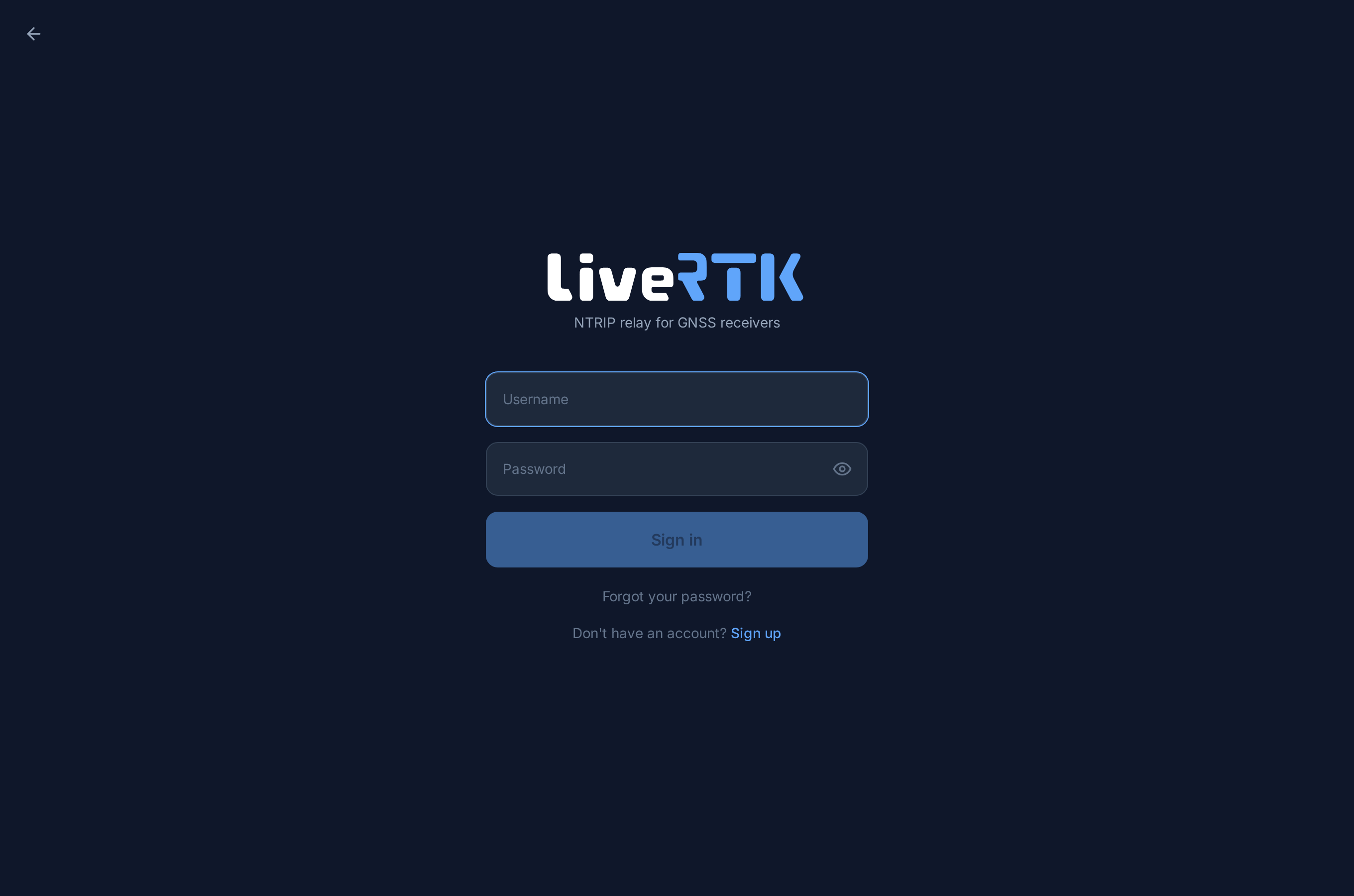
If the administrator left public registration on, below the form there is also the tab for creating an account yourself. Otherwise the administrator creates the account from the Users page.
Two addresses, two uses
This is where you get in with the browser. The rover and the base do not use this
address: they connect to ntrip.solutop.eu on port 2101. See What LiveRTK is.
Email verification
A brand new account cannot be used yet: LiveRTK sends a message with a confirmation link. Until you open it, sign-in is refused with an explicit message.
What to do if it does not arrive:
- look in the spam folder;
- from the sign-in screen, ask for it to be sent again;
- if the address was wrong, the administrator has to fix it from the Users page; then ask for a new message again from the sign-in screen. There is no command that unlocks an account by hand: verification always goes through the link in the email.
Forgotten password
The Forgot password link sends a message with a link valid for a limited time. Opening it lets you choose the new password, which must be at least six characters long. The link works once only: if you ask for another one, the first stops working.
One session at a time
LiveRTK keeps one active session per account in the dashboard: the moment you sign in from a second browser, the first one returns to the sign-in screen by itself — within a second, without waiting for you to do anything — and reads why there: "You were signed out because your account was used on another device".
It is on purpose — an account stands for a person, not a team. If several people need to work together they need several accounts: they take a minute to create and let you tell who did what in the sign-in history.
The Android app is a case of its own
The phone keeps a session of its own: signing in to the dashboard from a computer does not throw it out, nor the other way round. It is the same person working on two screens. Signing in from the app lasts three months. The panel instead closes on its own after two hours without a touch, and in any case twelve hours after sign-in.
The limit applies to the dashboard, not to rovers
The rovers' NTRIP connections are a different matter and follow the limits described in Users and permissions.
The main screen

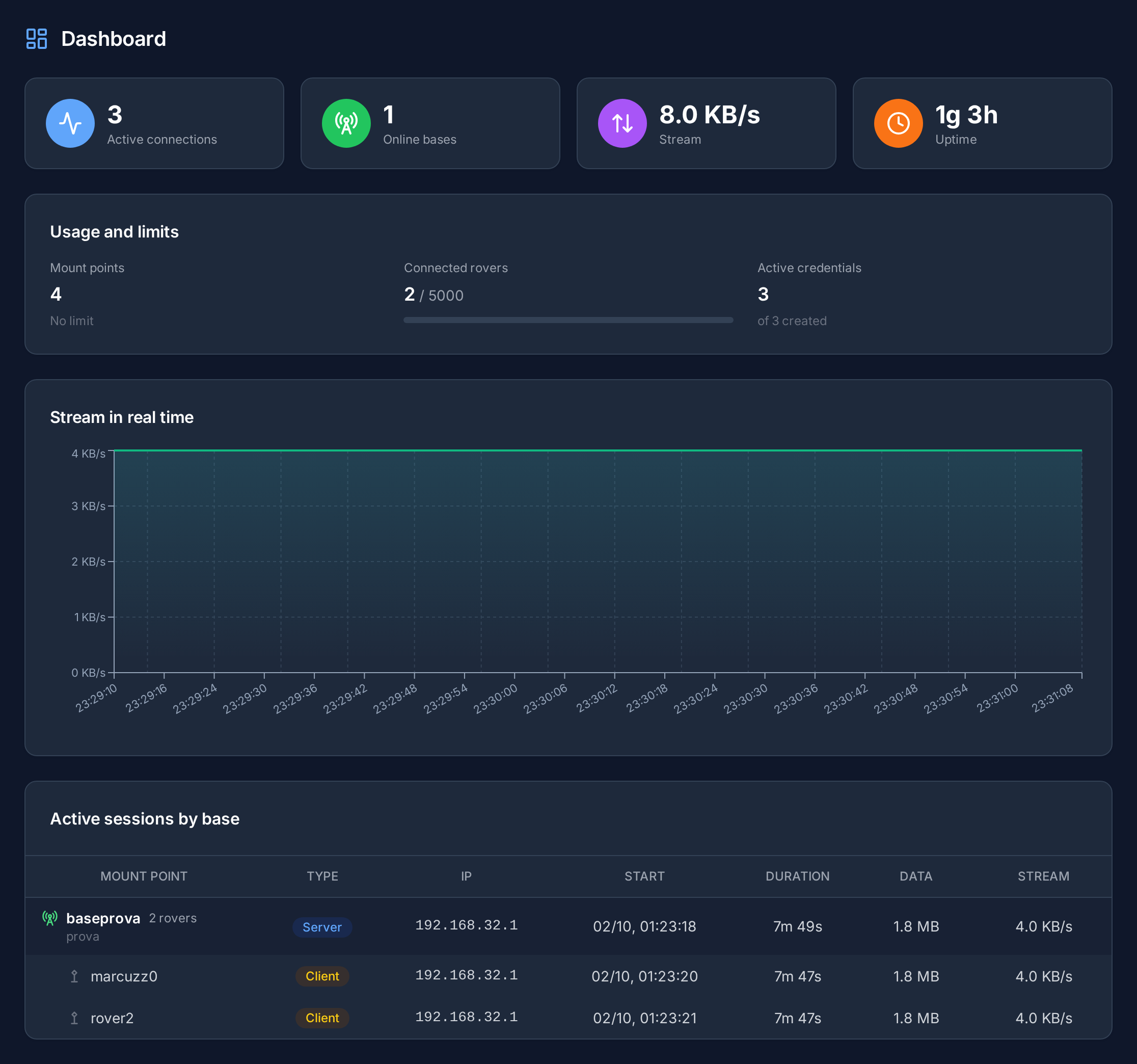
| Area | What it shows |
|---|---|
| The four tiles at the top | Active connections, online bases (the mount points that are transmitting), overall stream and how long the caster has been up |
| Stream in real time | Kilobytes per second going through the caster, updated every two seconds |
| Recent connections | Who connected (for a rover the user's name; a base connects without an account, and in its place you read what it is streaming from: Android, iPhone or the receiver's model), to which mount, from which address, at what rate |
The data arrives on its own: the page does not need reloading. If the live connection drops, the Data not live notice appears at the top and the numbers on this page stay frozen at their last value until the connection comes back. The Mount Points and Map pages, on the other hand, keep refreshing every three seconds.
Getting around
- The menu is on the left; the arrow halfway down its edge shrinks it to icons only when you need more room, and opens it again.
- On a phone the menu opens by tapping the logo with the section name, top left; the bar stays put while you scroll.
- The username at the top right opens your profile.
- The Guide entry at the bottom of the menu opens these pages in the language you are using.
Your profile

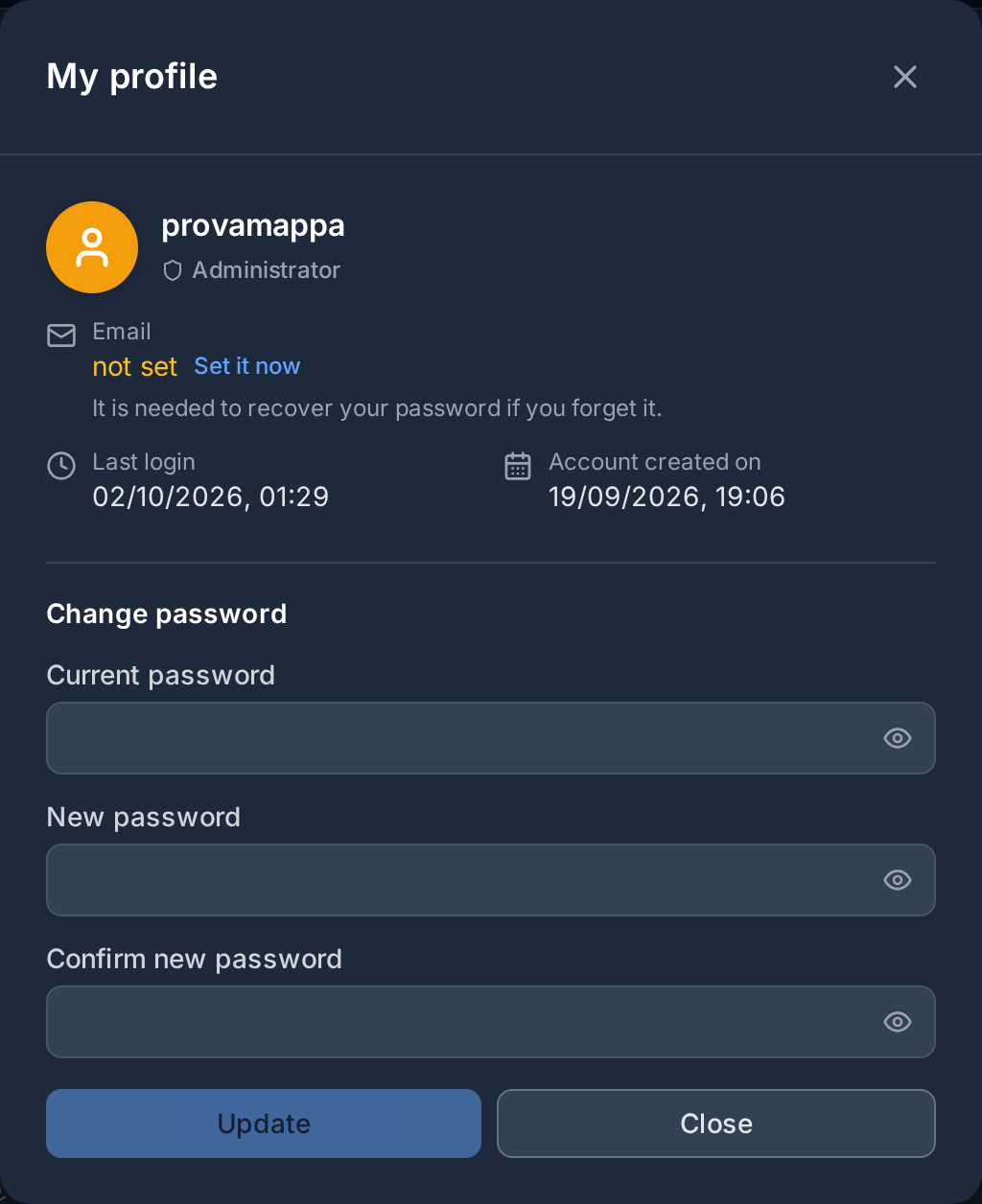
Your own name at the top right opens the profile: it shows role, email address, creation date and last sign-in. From there you change:
- email — your current password is required; the new address takes effect at once and no confirmation email is sent;
- password — you need the current one and the new one typed twice.
The round icon next to your name is amber for administrators and green for other users: you can see at a glance which role you are working with.
Theme, language and recordings
On the Settings page everyone chooses:
- the theme, light or dark;
- the interface language among Italian, English, Russian and Arabic — with Arabic the layout mirrors right to left;
- the length of recording sessions on their own mount points;
- which alerts to receive and where, by email or on Telegram (see Alerts);
- whether to show on the map the coverage of the bases and the distance on the rovers' baseline.
Theme and language belong to the account, not to the browser: you find them again on any device, and the emails LiveRTK sends you also arrive in the language you chose.