Users and permissions
The two roles
| Role | What it can do |
|---|---|
| Administrator | Everything: users, all mount points, caster settings, full logs and statistics |
| Client | Sees and manages only the mount points it owns, and connects to those it has access to |

Creating a user
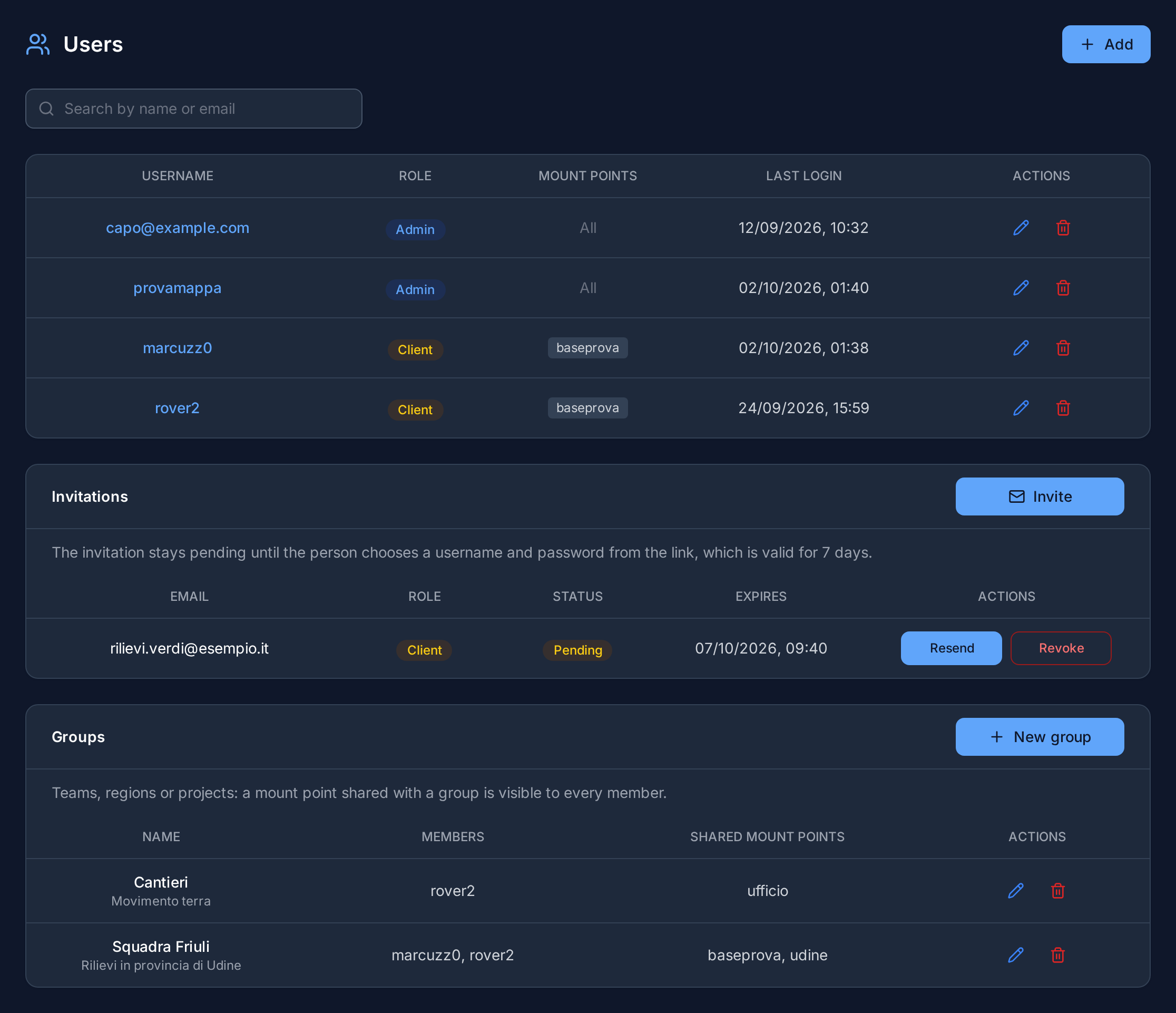
Users page → Add: username, email (optional), password, role. The username is what you sign in with, in the panel and from the rover: the email is a separate field and does not work for signing in.
The same panel is where you choose which mount points the user may connect to: that is the list their controller will see in the source table.
Who has to confirm the email, and who does not
An account created by the administrator is verified from the start: you sign in right away. Only those who register themselves have to confirm the address, and until they do, sign-in is refused with an explicit message. In that case the only way through is the emailed link, which can be sent again from the sign-in screen: there is no command on the Users page that unlocks an account.
Inviting a user


Instead of creating the account and passing on the password, you can invite the person: Users page → Invitations box → Invite, with the email address and the role (administrator or client). An email with a link is sent: the person opens it, chooses a username and password, and only at that moment does the account exist, already verified and with the role you decided. Direct creation with Add stays as it was.
Until it is accepted the invitation stays Pending, and from the list you can:
- Resend: a new email with a new link is sent, valid for another 7 days; the previous one stops working;
- Revoke: the link is no longer valid. The invitation stays in the list as Revoked.
The link is valid for 7 days: after that the invitation shows as Expired and can be resent. An address that already has an account cannot be invited, and for the same address there is only one pending invitation at a time. The account created from an invitation has no mount points yet: they are granted as for anyone else, directly or through a group.
If the email is not sent
If the caster cannot send the email, the panel says so and shows the link with the Copy button: you can hand it to the person yourself, for example in a chat.
Groups

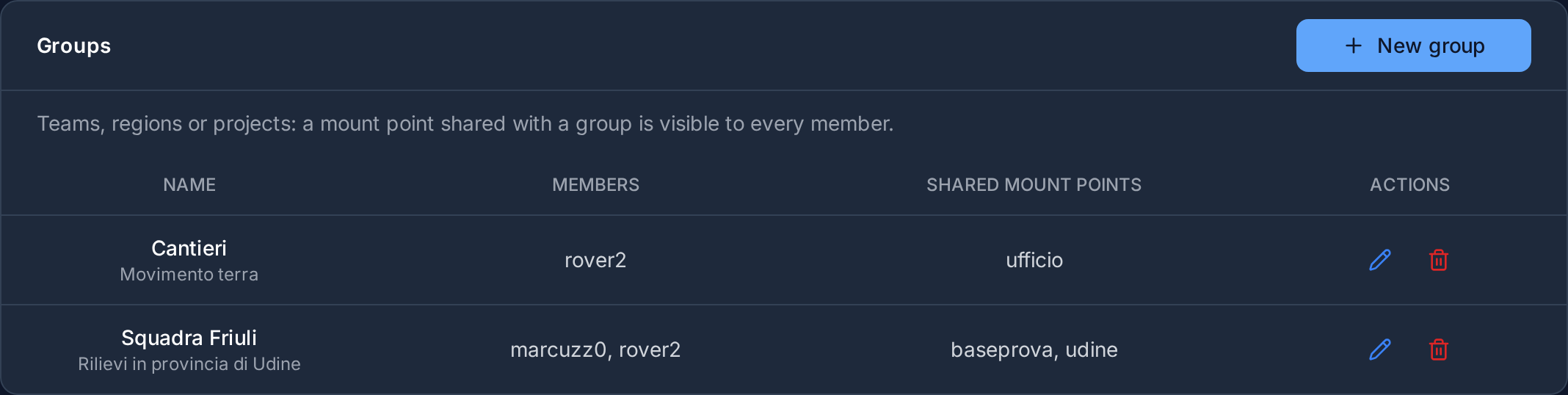
A group brings several users together — a team, a region, a project — to give access to mount points to all of them at once, instead of one person at a time. Only the administrator manages them, from the Groups box of the Users page: name, description, members and shared mount points.
A user sees a mount point, and connects to it as a rover, if:
- they own it, or
- it has been shared with them directly (the list in the user's edit form), or
- they belong to a group the mount point is shared with.
The rule is the same everywhere: mount point list, map, statistics, exports, caster and nearest base (NEAREST). Whoever loses access to a mount point — leaves a group, the group is deleted or no longer has that mount, the direct share is removed, the mount passes to another owner — stops seeing it immediately: their rovers already connected to that mount are disconnected, including those that came in with one of their NTRIP credentials, and the next connection is refused. Whoever still sees it another way stays connected. A rover on NEAREST moves to the nearest base among those it still sees, and is disconnected only if none is left.
From the detail of a mount point the administrator also chooses which groups it is shared with (Groups with access box). Deleting a group touches neither the users nor the mount points: only the group's shares go away.
Searching for a user and their profile
Above the list there is the search by username or email. Tapping a user's name opens their profile: role and status, creation date and last login, the mount points they own, those shared with them directly and those they see through a group (with the group's name), the groups they belong to and the last 20 connections — as a rover with their name and as a source on their own mount points.
Deleting a user
From the Users page you delete, and it is final: connections close immediately and the account leaves no trace.
The caster also knows how to deactivate an account — blocking it while keeping history, logs and recordings — but that command is not in the panel: today deactivation can only be read, not set.
Limits
They apply to all clients. The first three can be changed in the settings: the last one is fixed in the caster.
| Limit | Default | Changeable? |
|---|---|---|
| Mount points they own | 2 | Yes |
| Different mount points used at once | 5 | Yes |
| Simultaneous connections in total | 10 | Yes |
| Connections on the same mount point | 3 | No |
The mount point count looks at the ones they own: bases an administrator shared with them do not eat into their quota.
One session at a time
Signing in from a second device disconnects the first. That is about the web interface: the rovers' NTRIP connections are a different matter and follow the limits above.