iPhone app
Available on the App Store
The app is installed from the App Store: LiveRTK on the App Store.
Any receiver, LiveRTK caster only
The app works with any GNSS receiver that transmits RTCM3 corrections over
Bluetooth LE, whatever its make. It sends the corrections only to the LiveRTK
caster (ntrip.solutop.eu) and needs a LiveRTK account: it is not a generic NTRIP
client to use with other casters.
The LiveRTK app for iPhone does what the Android one does: it turns the phone into the NTRIP source of a GNSS receiver. It reads the corrections from the receiver over Bluetooth LE and forwards them to the caster, over the phone's data connection.
The phone connects to the caster at ntrip.solutop.eu, port 2101. The address is
built into the app and cannot be changed.
What is different from Android
The two apps have the same screens, the same rules and the same words. There are two differences, and they do not depend on us:
| Android | iPhone | |
|---|---|---|
| Bluetooth | classic (SPP) and Bluetooth LE | Bluetooth LE only |
| How the receiver is identified | MAC address | a code that the iPhone assigns to the receiver, different on every phone |
- Bluetooth LE only: on iPhone, classic Bluetooth (SPP) is not accessible to apps without a certification from the receiver's manufacturer. A receiver that only speaks SPP works with the Android app and not with the iPhone one; it needs the Nordic UART profile.
- No MAC address: the iPhone does not hand it to apps. In its place the list shows the first eight characters of the code the phone has given the receiver: enough to tell apart two devices switched on together, but on another iPhone the same receiver will have a different code.
The app asks for a single permission, Bluetooth, the first time it searches for a receiver.
The dashboard

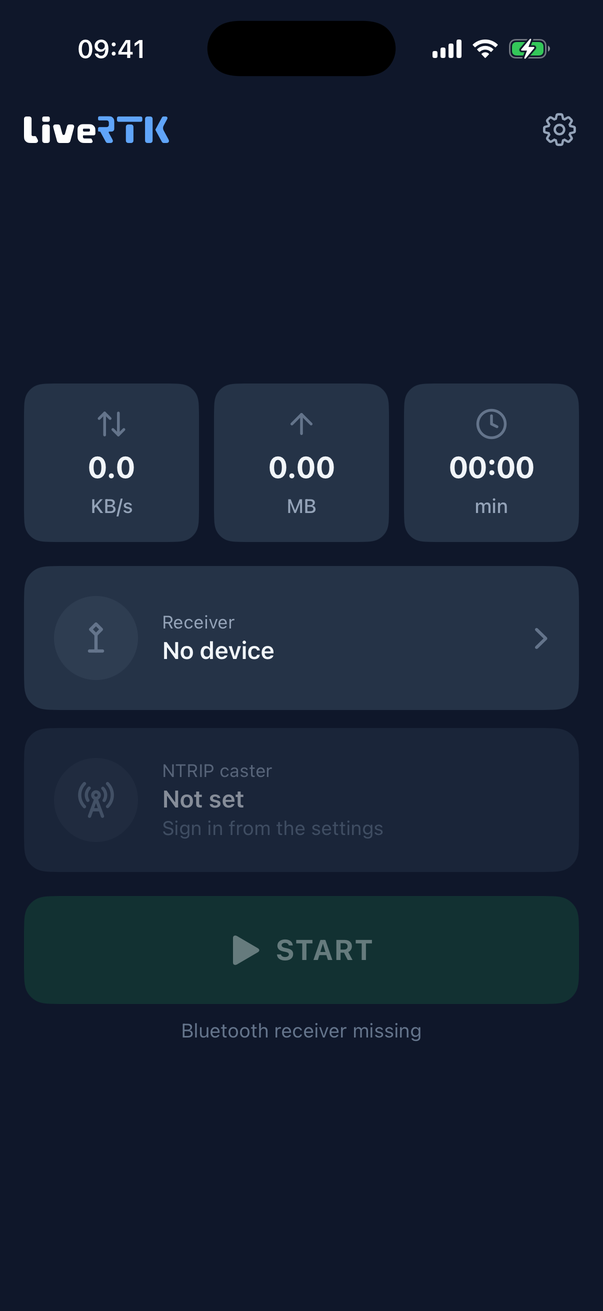
This is the screen that opens. From the top:
- the bar with the logo and the gear, which leads to the settings;
- three counters: Stream in KB/s, Sent in MB and Time in minutes (in hours once past the hour). They are grey until the relay transmits, blue while it transmits;
- the Receiver card: with no device it leads to choosing one, with a device it leads to configuring it. Under the name it says how it is set up: Rover, Fixed base, Base (survey-in) or Not configured;
- the NTRIP caster card, which opens the list of mount points. Without signing in it cannot be tapped and says «Sign in from the settings»;
- the START button, which becomes STOP while the relay transmits.
A card's symbol is grey until that piece is ready and green when it is: the receiver when it is chosen and configured, the caster when it has answered and the chosen mount point exists and is active. If it is not, under the name you read Caster not reachable, Mount point suspended or Mount point not found.
START needs three things: the receiver, its configuration and the mount point. While one is missing the button is off, and the line underneath says which one, in the order you work in: «Bluetooth receiver missing», «The receiver is not configured yet», «Mount point missing».
While the relay transmits the two cards cannot be tapped: the caster is already receiving on that mount, from that receiver. To change something, press STOP.
Settings

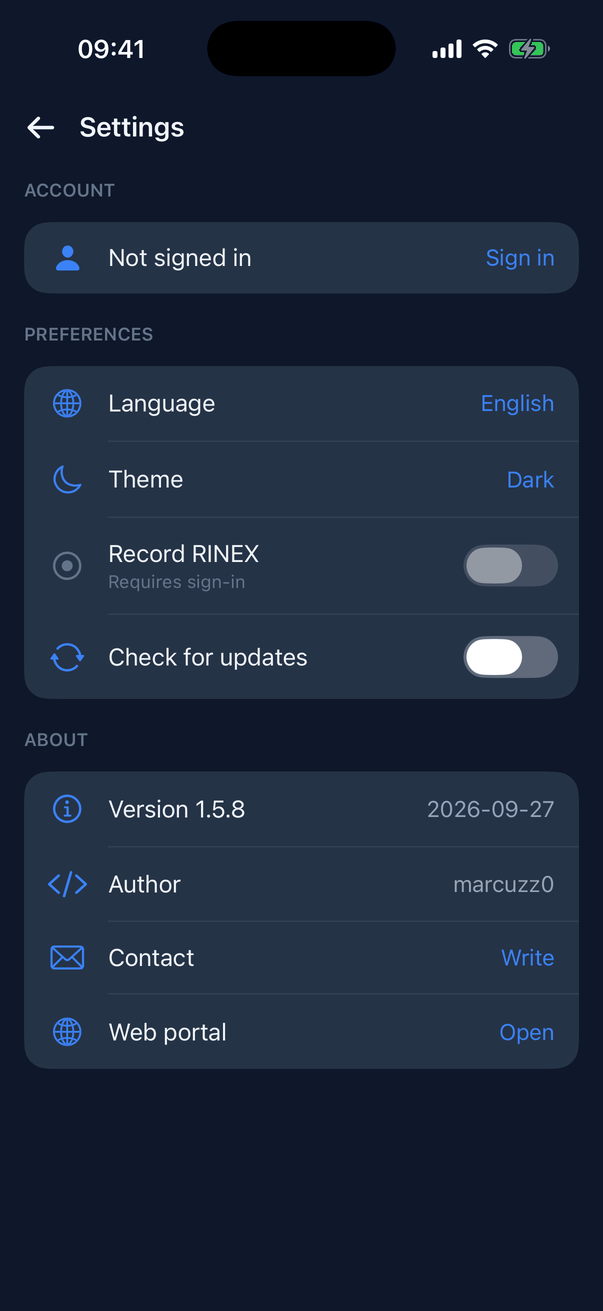
They open from the gear and are divided into three groups:
| Group | Item | What it does |
|---|---|---|
| Account | your name, or «Not signed in» | Sign in opens the account row with the sign-in fields; Log out ends the session |
| Preferences | Language | Italian, English, Russian or Arabic; Arabic reads from the right |
| Theme | Same as phone, Light or Dark | |
| Record RINEX | when on, the caster records every relay session; requires sign-in | |
| Check for updates | on opening, the app tells you if there is a new version | |
| About | Version, Contact, Web portal | the installed version, the email to write to us and the web dashboard |
Record RINEX means «record when I start», not «record now»: the recording opens when the relay hooks up to the caster and closes however it ends. While the relay transmits the switch cannot be changed. If the recording does not start — storage full, network — the app says so in a window, and the transmission carries on.
You cannot log out while the relay transmits: the app says so and offers Stop the relay, which takes you back to the dashboard and stops it as the STOP button does.
Sign-in

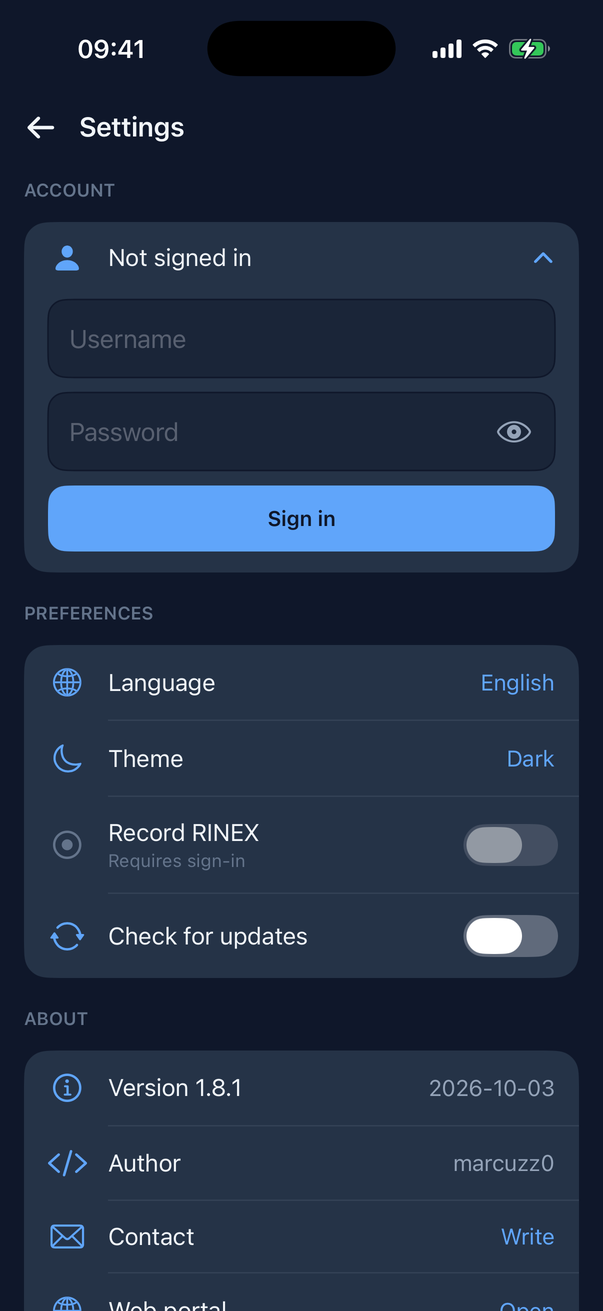
Sign in opens the account row, inside the settings: username and password — the same credentials as the website — with the eye to show the password, then Sign in. Tapping the row again closes it; when sign-in succeeds it closes by itself and shows your name. If something goes wrong, the reason appears in red below the fields.
It is needed for two things: the list of mount points, which the caster only hands to those who have authenticated, and RINEX recording. Without signing in the mount point cannot be chosen and «START» stays off.
The sign-in stays even when you close the app: in the field nobody wants to type it again every morning. Signing in from the iPhone does not end the session in the browser, and vice versa. When you log out the mount point goes too, since it came from that account's list.
Choosing the receiver

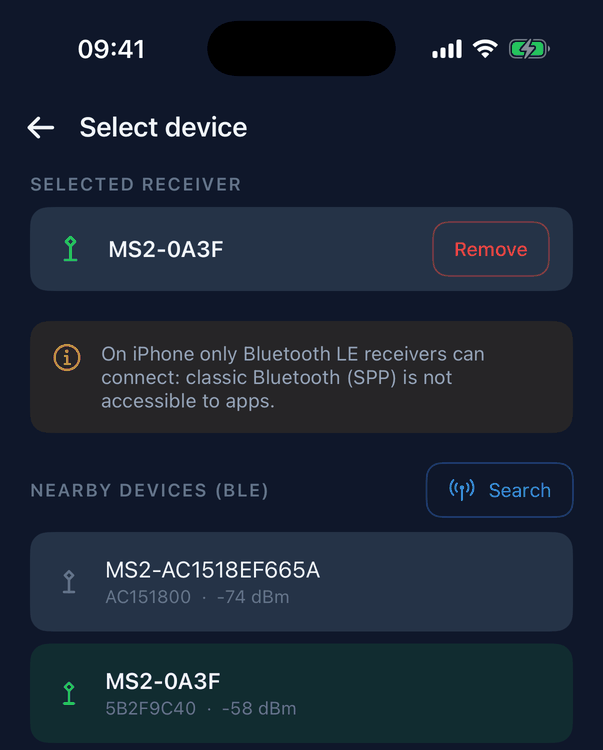
The Receiver card leads to Select device. The search starts by itself; Search repeats it.
- At the top, Selected receiver shows the one in use. When the screen opens the app tests it: the symbol is green if it answers, grey with «Not responding» if it is off or out of range. Remove clears the choice, closes the connection — so the receiver is free again for another phone — and forgets the configuration that had been sent to it.
- The yellow box explains why only Bluetooth LE receivers appear here.
- Below, Nearby devices (BLE): each row has the name, the first eight characters of the receiver's code and the signal strength in dBm. The list is sorted by name, so the rows do not jump under your finger as the signal changes. Any receiver appears, whatever its make, as long as it has a name; the ones advertising the Bluetooth LE serial service (Nordic UART) come first, so headphones, watches and cars nearby end up at the bottom.
When you tap a row the app connects straight away: if the receiver answers you go back to the dashboard, otherwise you stay here with the reason written underneath, to try again.
If the receiver does not appear
It must be on, nearby, and not already connected to another phone or a PC: a Bluetooth LE device accepts one connection at a time.
The app does not keep the receiver connected when it is not needed: it opens the connection to configure it or to transmit, and releases it at the end. The chosen receiver is not remembered from one opening of the app to the next: yesterday's may be off today, or in someone else's hands.
Configuring the receiver

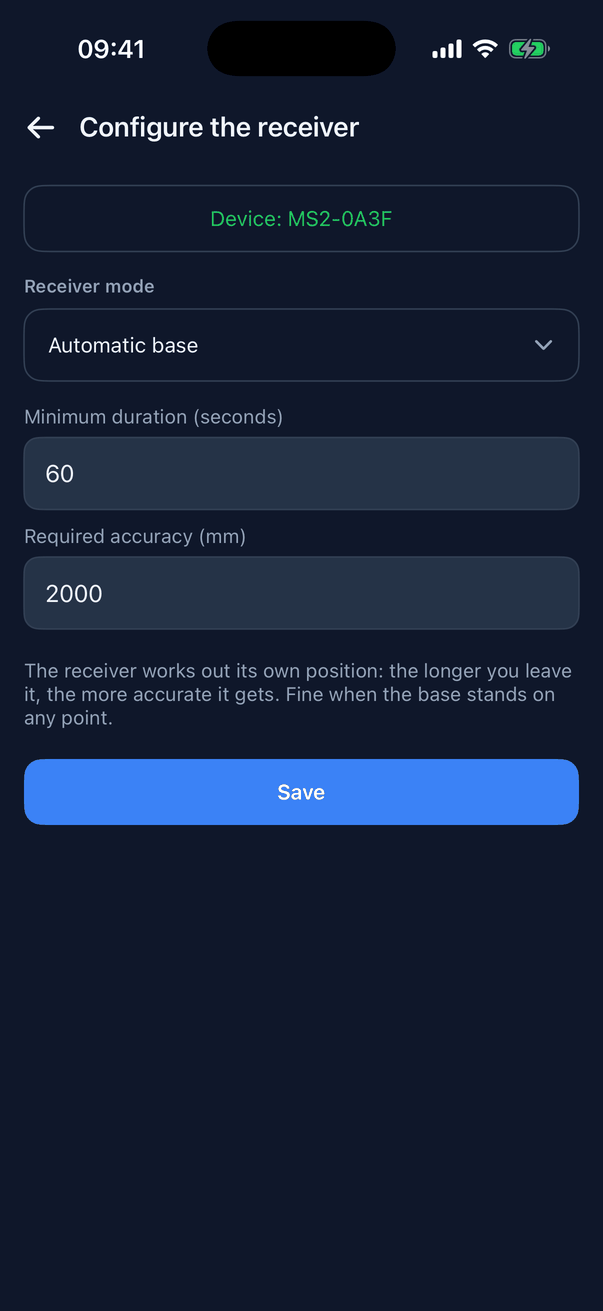
With a receiver chosen, the Receiver card leads to Configure the receiver. At the top is the Device row, which turns green when the receiver has answered and leads to choosing another one. The app configures by itself the receivers that respond to its commands; for the others it says so and offers a single mode, Already set up as a base: they must be set up as an RTCM3 base with their configuration software.
The Receiver mode is chosen from a drop-down:
The receiver goes back to receiving corrections instead of sending them: that is how it is used in the field, on the point being surveyed.
The receiver works out its own position. Minimum duration (seconds) says how long it must stay at least, Required accuracy (mm) when to stop. Fine when the base stands on any point.
You write the position in. It is the only way to get surveys that agree with one another across different days.
For a receiver already set up as an RTCM3 base with its configuration software: the app sends it nothing, records the configuration and START lights up. Under the receiver's name the dashboard reads Base (set up separately). On start the eight-second check still applies: if no RTCM3 arrives from the receiver, nothing goes out to the caster.
Save sends the chosen mode to the receiver. While the commands travel, a wait in the middle of the screen says which configuration is being sent, and until it ends nothing else can be touched. If it succeeds «Configuration applied» appears for a moment and you go back to the dashboard; if it fails, the error stays on the screen together with how many commands the receiver confirmed.
Base with known coordinates

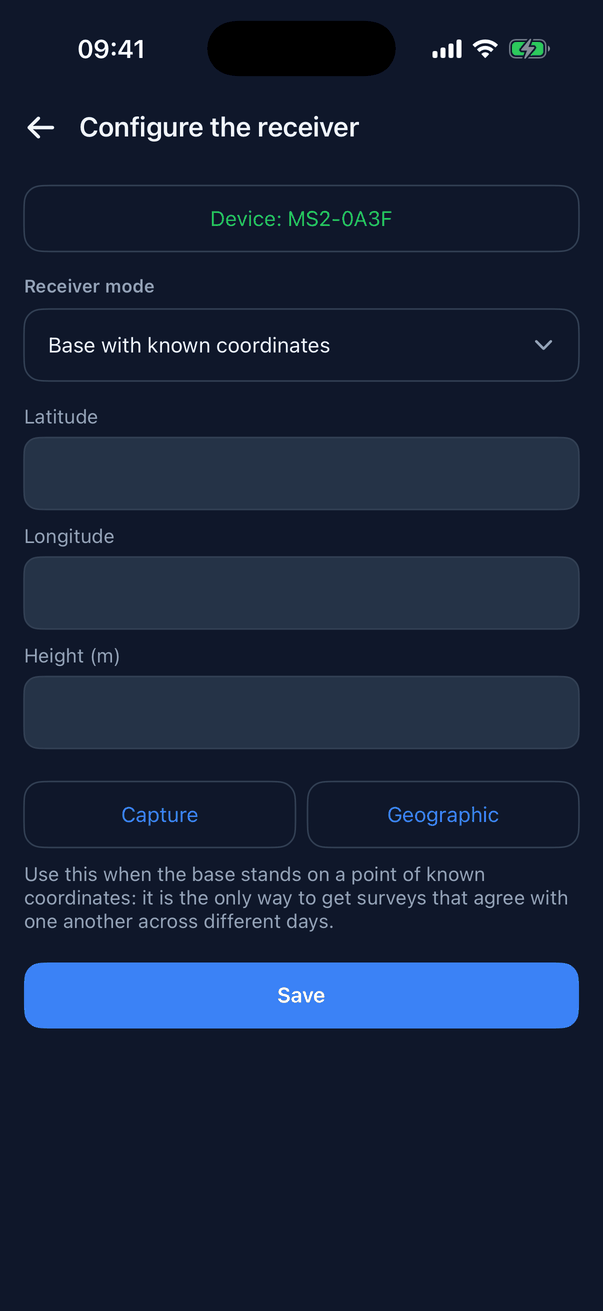
The coordinates are written in Geographic (latitude, longitude, height) or Geocentric (X, Y, Z in metres). The button next to «Capture» says which system the fields are in and, when tapped, switches to the other, converting what is already written.
Capture takes the position from the receiver itself, from its GGA sentence, and fills in the fields. If the receiver is in RTK fixed the point is good as a known point; if it is not, the app says so, because the base would inherit that accuracy.
Before sending, the values are checked: latitude between -90 and 90, longitude between -180 and 180. A base in the wrong place is only discovered in the surveys, afterwards.
Choosing the mount point

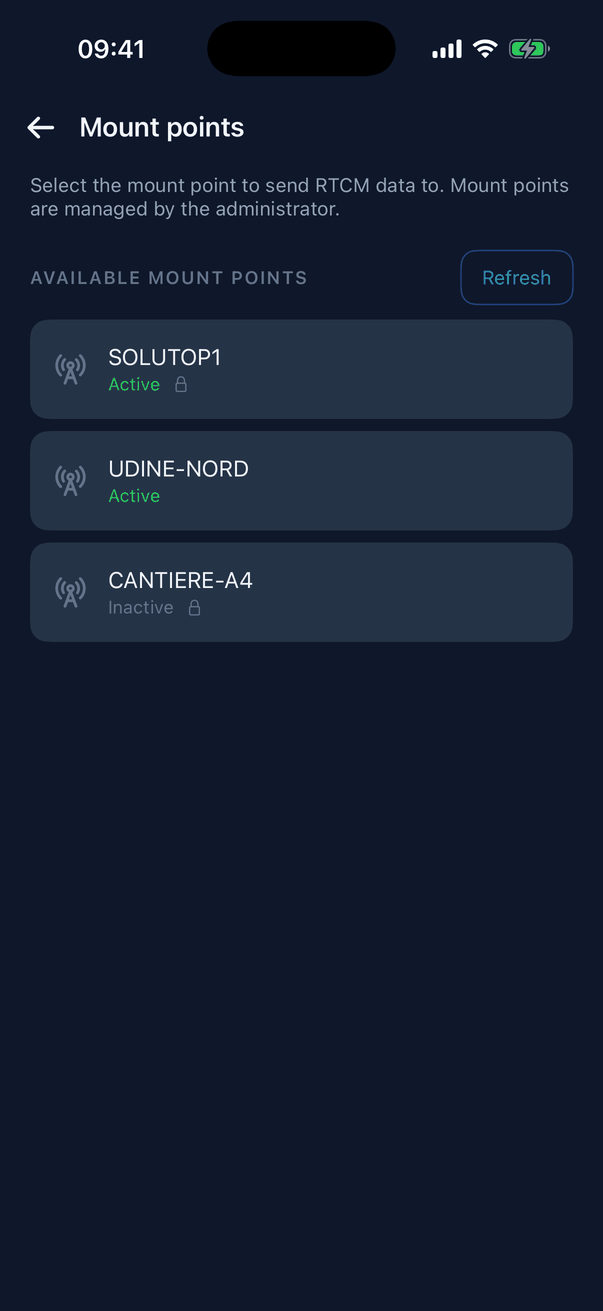
After signing in, the NTRIP caster card opens Mount points: the list of mount points the caster makes available to you. Each row says whether the mount is Active or Inactive — a suspended one appears anyway, but the caster would reject it — and shows a padlock if it has a password. Refresh reloads the list.

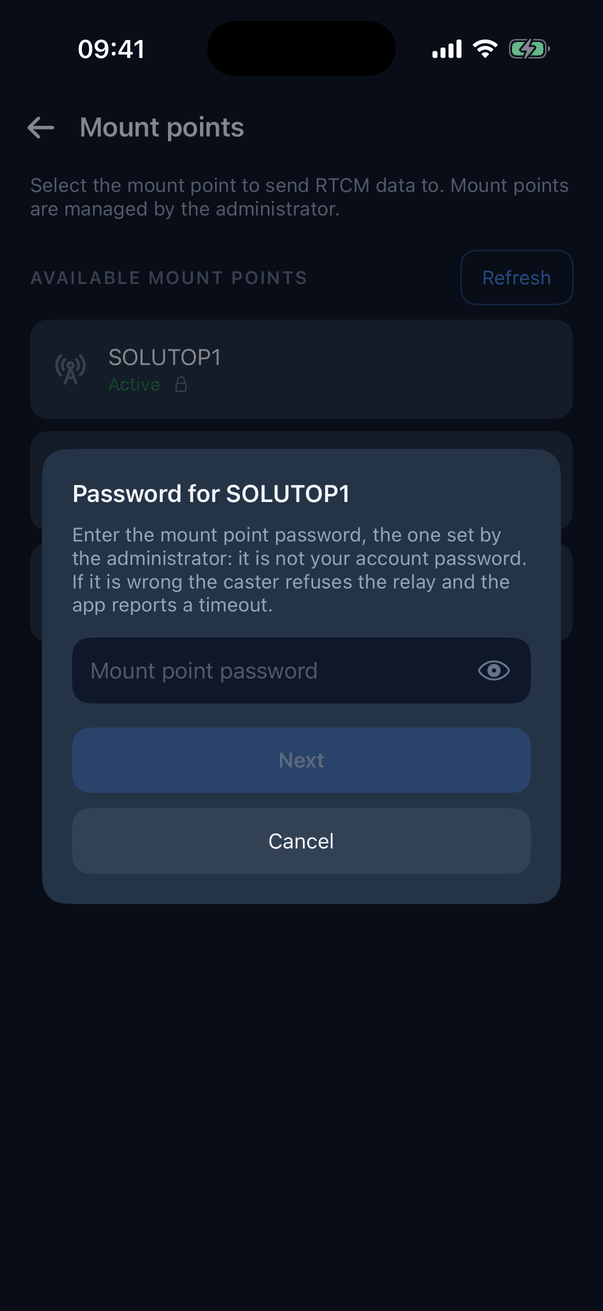
If the mount has a password the app asks for it in a window titled «Password for <mount>», with the Next command, off while the field is empty, and Cancel: it is the mount point's password, not your account's. If it has none, it asks for nothing. If the list does not arrive the app says why: session expired, permissions, caster not reachable or no mount point available.
The mount point is not remembered from one opening of the app to the next: it is chosen for the session you are about to do.
The mount point already chosen appears at the top of the list, under SELECTED MOUNT POINT, with Remove: it clears the choice in the app — the caster card turns grey again and START goes off — while on the caster the mount stays as it is. While the relay is transmitting the screen does not open, so it cannot be removed mid-session.
Transmitting
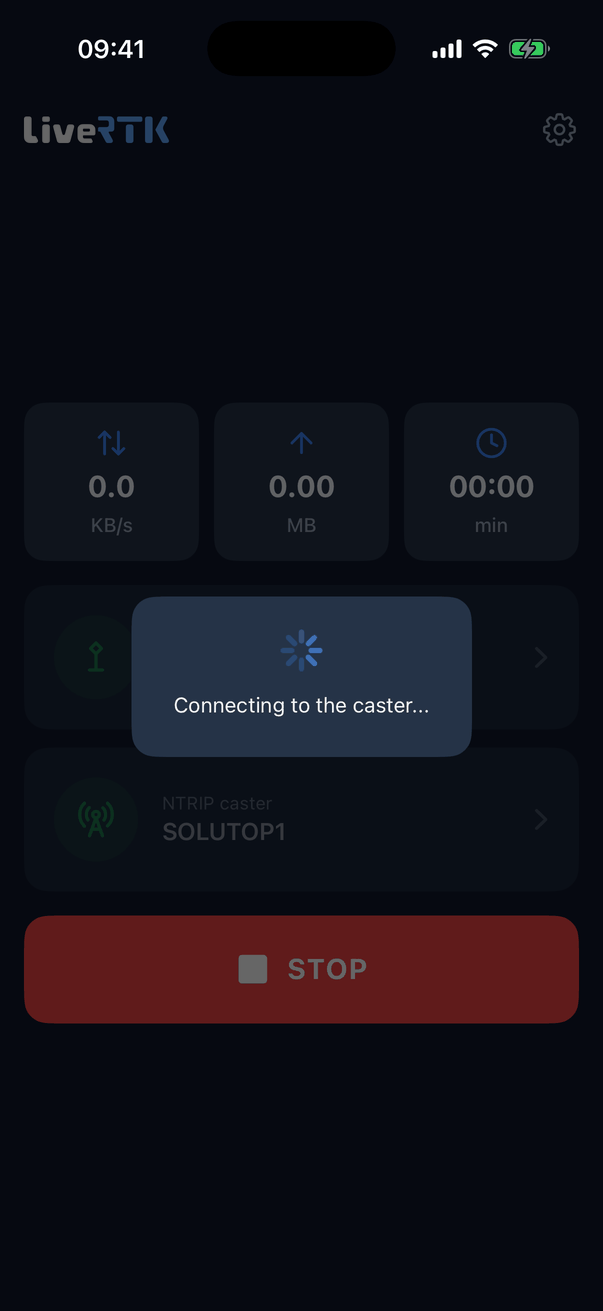
When you press START the app goes through three phases, each with its own wait in the middle of the screen:
- Connecting to the receiver;
- Checking the stream from the receiver: for eight seconds it listens to the receiver;
- Connecting to the caster.


It has to be RTCM 3.x
Nothing goes out to the caster until the app recognises a valid RTCM3 message, with the CRC check. If none arrives within eight seconds the relay stops and says so, without having contacted the caster. A mixed stream, RTCM3 together with NMEA, is fine.

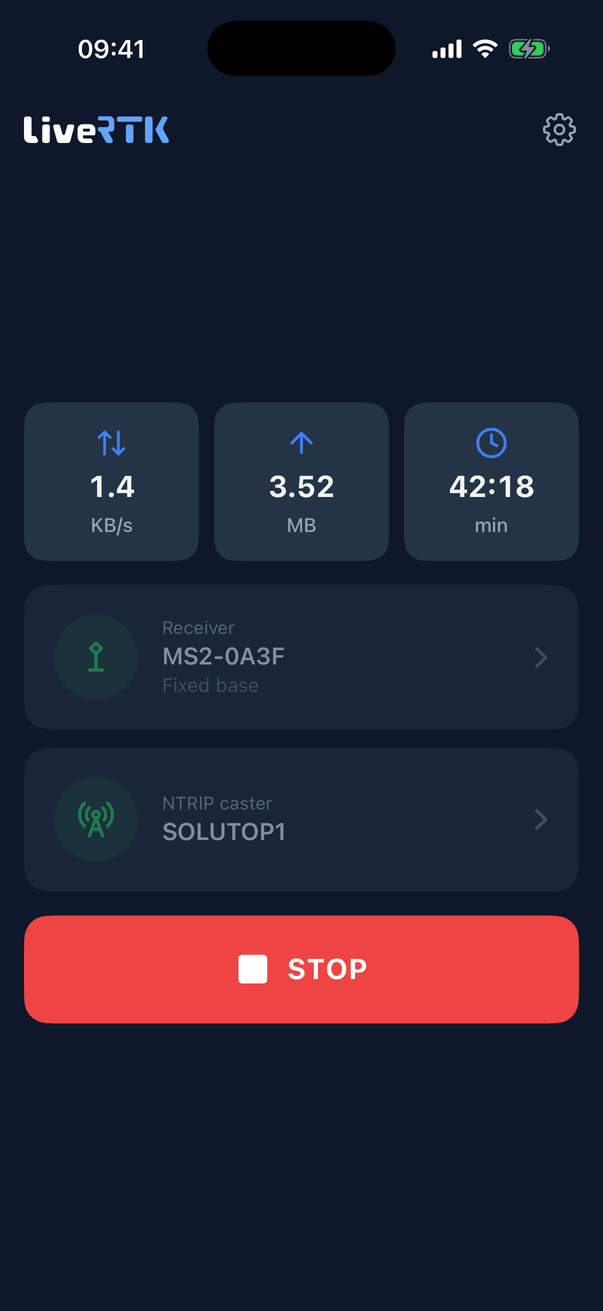
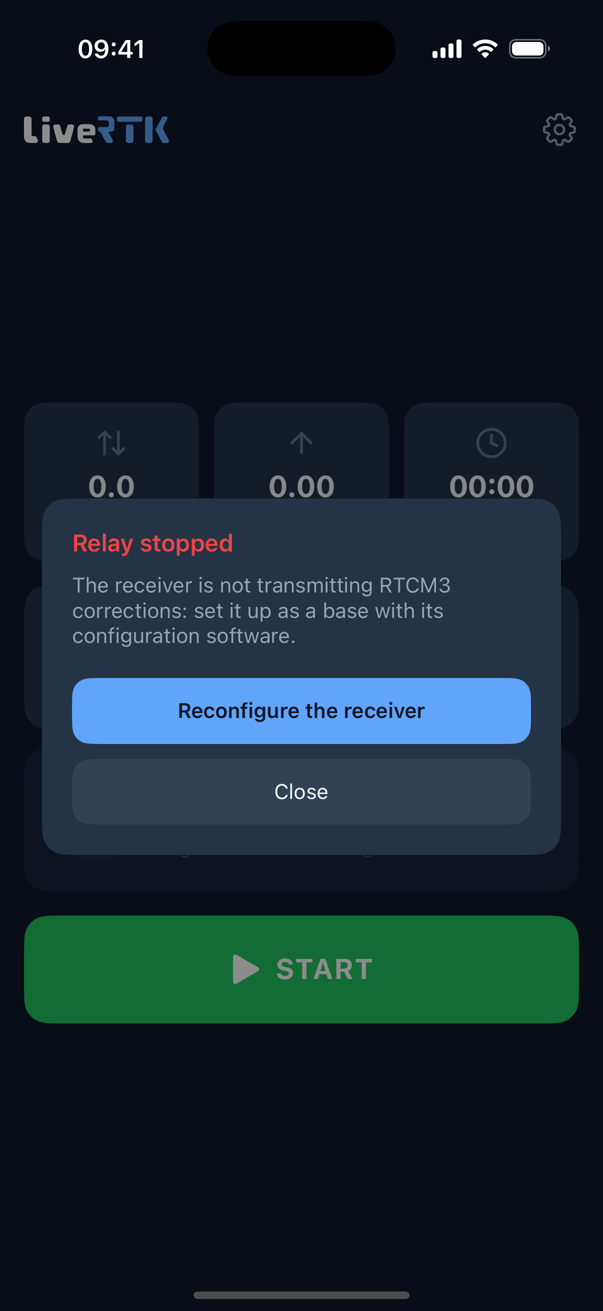
From then on the counters turn blue and the mount point is Online on the website. If the network drops for a moment the app reconnects by itself, without stopping. A lost receiver is also taken back automatically: if Bluetooth drops, or nothing arrives from the receiver for 15 seconds, the app tries to reconnect it for one minute, with the caster still connected and the yellow line Receiver lost, reconnecting... under the button. It does stop, with a Relay stopped window giving the reason, when the caster rejects the password or the mount point, or when within that minute the receiver does not send RTCM3 again. Close closes the window; if the trouble is the receiver and the app configures it by itself, above it there is Reconfigure the receiver, which leads to the configuration; for the others the message says to set it up as a base with its configuration software.

STOP ends the transmission and asks whether to set the receiver back to rover: whoever made it a base for one session should not find it still a base tomorrow without knowing.
Keep the app open
For a base that has to stay up for hours, keep the app in the foreground and the phone plugged into power.
The configuration lives in the phone
The configuration sent to the receiver is remembered by the phone that sent it: an iPhone does not know how an Android phone left it, and vice versa. Whoever switches from one phone to the other redoes the configuration once.